Generic AI tagging is fine — until you actually need to use those tags for something.
You upload a photo of a round-neck t-shirt worn by a male model in a studio and the generic tagger gives you "clothing", "person", "fabric". Technically correct. Practically useless. Your e-commerce platform needs to know it's a "round-neck", "half-sleeve", "men's", "studio-shot" t-shirt. Your search and filtering depends on it. Your downstream automation depends on it. And your team definitely isn't going to manually tag 10,000 product images.
This is what AI tasks in ImageKit's DAM solve. You write questions in plain English, define the exact vocabulary the AI should pick from, and the LLM analyzes each image and applies consistent, schema-safe tags and metadata. Across thousands of images, at upload time, with no manual tagging.
How AI tasks are different from generic auto-tagging
Most DAM systems offer some form of AI auto-tagging. You upload an image, and a model generates generic labels — "person", "outdoor", "blue". These are based on what's visually present, but they have no awareness of your business context.
AI tasks flip this around. Instead of asking "what's in this image?", you ask specific questions:
- "Is there a male or female model in this image?"
- "What is the collar type — round, polo, or v-neck?"
- "Is this a full sleeve or half sleeve?"
- "Is the image shot in a studio or outdoors?"
And critically, you can define the vocabulary. When you do, the AI can only respond with values from your approved list. No surprise tags. No inconsistencies. Every image gets metadata in the exact format your systems and teams expect.
The anatomy of an AI task
An AI task is a collection of sub-tasks. Each sub-task is essentially one question you want to ask about an image, paired with an action (what to do with the answer) and an optional vocabulary (the valid answers).
Each sub-task has three pieces:
- Instruction — A natural language question or directive. "What type of collar does this shirt have?"
- Action type — What happens with the answer: add tags, set a metadata field, or branch based on yes/no.
- Vocabulary — An optional controlled list of values the AI can choose from (up to 30 items per sub-task).
You can have 1 to 10 sub-tasks in a single AI task. They all run on the same image in one go, so a single upload can trigger complete categorization across multiple dimensions.
The three action types
AI tasks support three action types, each suited for different needs.
select_tags — Add tags from your vocabulary
Use this when you want to apply one or more tags to an image based on what the AI sees. The AI evaluates the image against your instruction, picks matching tags from your vocabulary, and adds them to the file.
{
  "type": "select_tags",
  "instruction": "What types of furniture are visible in this image?",
  "vocabulary": ["sofa", "chair", "table", "desk", "bed", "shelving", "cabinet", "lamp"],
  "min_selections": 1,
  "max_selections": 4
}
The min_selections and max_selections parameters let you control how many tags the AI applies. Set both to 1 if you want exactly one answer per image.
select_metadata — Set a custom metadata field value
Use this when you need structured data, not just tags. The AI picks a value from your vocabulary and writes it to a specific custom metadata field. The field must already exist in your Media Library.
{
  "type": "select_metadata",
  "instruction": "What is the dominant lighting condition in this image?",
  "field": "lighting",
  "vocabulary": ["natural-daylight", "golden-hour", "overcast", "indoor-artificial", "low-light", "night"],
  "min_selections": 1,
  "max_selections": 1
}
This is ideal for dropdowns, single-select fields, and any structured data you want consistently filled across all assets.
yes_no — Binary decisions with conditional actions
Use this for quality checks, compliance flags, or any question with a yes/no answer. You define different actions for yes, no, and optionally "unknown" (when the AI isn't confident).
{
  "type": "yes_no",
  "instruction": "Does this image meet quality standards for print publication (sharp focus, good lighting, high resolution)?",
  "on_yes": {
    "add_tags": ["print-ready", "approved"],
    "set_metadata": [
      { "field": "quality_status", "value": "approved" }
    ]
  },
  "on_no": {
    "add_tags": ["web-only", "needs-improvement"],
    "remove_tags": ["print-ready", "approved"],
    "set_metadata": [
      { "field": "quality_status", "value": "rejected" }
    ]
  },
  "on_unknown": {
    "add_tags": ["needs-review"],
    "set_metadata": [
      { "field": "quality_status", "value": "pending" }
    ]
  }
}
Each branch (on_yes, on_no, on_unknown) can add tags, remove tags, set metadata, and unset metadata — giving you complete control over what happens based on the AI's assessment.
Industry examples
The best way to understand AI tasks is to see them in context. Here's how different industries use them.
E-commerce: Complete product categorization
Instead of generic tags, you get structured, searchable product attributes:
{
  "name": "ai-tasks",
  "tasks": [
    {
      "type": "select_tags",
      "instruction": "What types of clothing or accessories are visible in this product image?",
      "vocabulary": [
        "dress", "shirt", "t-shirt", "sweater", "jacket",
        "pants", "jeans", "skirt", "shorts", "shoes",
        "boots", "sneakers", "bag", "belt", "hat", "scarf", "jewelry"
      ],
      "min_selections": 1,
      "max_selections": 5
    },
    {
      "type": "select_metadata",
      "instruction": "What is the primary color of the main product?",
      "field": "primary_color",
      "vocabulary": [
        "black", "white", "gray", "beige", "brown",
        "red", "pink", "orange", "yellow", "green",
        "blue", "navy", "purple", "multi-color"
      ],
      "min_selections": 1,
      "max_selections": 1
    },
    {
      "type": "select_metadata",
      "instruction": "What season is this product suitable for?",
      "field": "season",
      "vocabulary": ["spring", "summer", "fall", "winter", "all-season"],
      "min_selections": 1,
      "max_selections": 2
    },
    {
      "type": "yes_no",
      "instruction": "Is this a formal or dressy item suitable for office or formal events?",
      "on_yes": {
        "add_tags": ["formal", "occasion-wear"],
        "set_metadata": [{ "field": "style_category", "value": "formal" }]
      },
      "on_no": {
        "add_tags": ["casual", "everyday"],
        "set_metadata": [{ "field": "style_category", "value": "casual" }]
      }
    }
  ]
}
Upload thousands of product images and every single one gets product type, color, season, and style classification — consistently, without a single manual tag.
Automotive: Vehicle image classification
{
  "name": "ai-tasks",
  "tasks": [
    {
      "type": "select_tags",
      "instruction": "What is the body style of the vehicle shown in this image?",
      "vocabulary": ["sedan", "suv", "hatchback", "coupe", "convertible", "pickup truck", "minivan"],
      "max_selections": 1
    },
    {
      "type": "select_tags",
      "instruction": "Which part of the car is primarily featured?",
      "vocabulary": [
        "full exterior", "front view", "rear view", "side profile",
        "dashboard", "front seats", "rear seats", "trunk/boot",
        "wheel/rim", "headlight", "infotainment screen"
      ],
      "max_selections": 1
    },
    {
      "type": "select_tags",
      "instruction": "What is the primary color of the vehicle's exterior?",
      "vocabulary": ["white", "black", "silver", "grey", "blue", "red", "green"],
      "max_selections": 1
    },
    {
      "type": "select_tags",
      "instruction": "Is the image taken in an indoor setting or outdoor?",
      "vocabulary": [
        "indoor - showroom", "outdoor - city/road",
        "outdoor - nature/offroad", "studio - plain background"
      ],
      "max_selections": 1
    }
  ]
}
Travel and hospitality: Location and scene tagging
{
  "name": "ai-tasks",
  "tasks": [
    {
      "type": "select_tags",
      "instruction": "In which city is this place located? If not identifiable, don't provide any tag.",
      "max_selections": 1
    },
    {
      "type": "select_tags",
      "instruction": "What is the landscape in this image? Add suitable tags.",
      "max_selections": 5
    },
    {
      "type": "select_tags",
      "instruction": "At what time of day was this picture taken?",
      "vocabulary": ["morning", "afternoon", "evening", "night"],
      "max_selections": 1
    },
    {
      "type": "select_tags",
      "instruction": "Does this image show solo travellers, a couple, a family, or no people?",
      "vocabulary": ["solo travellers", "family", "couple", "no people"],
      "max_selections": 1
    }
  ]
}
Notice that some tasks don't specify a vocabulary — in those cases, the AI generates free-form tags based on your instruction. You'll want to use vocabularies when consistency is critical and leave them out when you need the AI to identify things you can't predict in advance (like city names or landmarks).
Image QC with AI tasks
Beyond tagging, AI tasks are powerful for quality control. The yes_no action type is built for this.
Here are examples of QC questions you can set up:
- "Is the image blurry or grainy?"
- "Is the product fully visible or is it getting cropped?"
- "Does this image contain any person's face?" (for PII detection)
- "Does this image contain any NSFW content?"
Based on the answers, you can automatically tag assets as "needs-review" or "production-ready", or set a quality_status metadata field that your publishing workflow can filter on. This lets you run QC at upload time, across thousands of images, with zero manual review for the clear-cut cases.
How to set up AI tasks
AI tasks live inside saved extensions — reusable configurations you create once and apply anywhere. Here's the workflow:
Step 1: Create your custom metadata fields
If you plan to use select_metadata or yes_no tasks that set metadata, create the fields first. Go to Settings → Media Library → Custom Metadata Fields.
For example, create a single-select field called primary_color with values matching your vocabulary, or a text field called quality_status. If a sub-task can pick more than one value (like season above, with max_selections: 2), the field must be a multi-select. The vocabulary has to match the field's type and allowed values — otherwise the AI task can't set the value, and you'll need to check the asset history to see why.
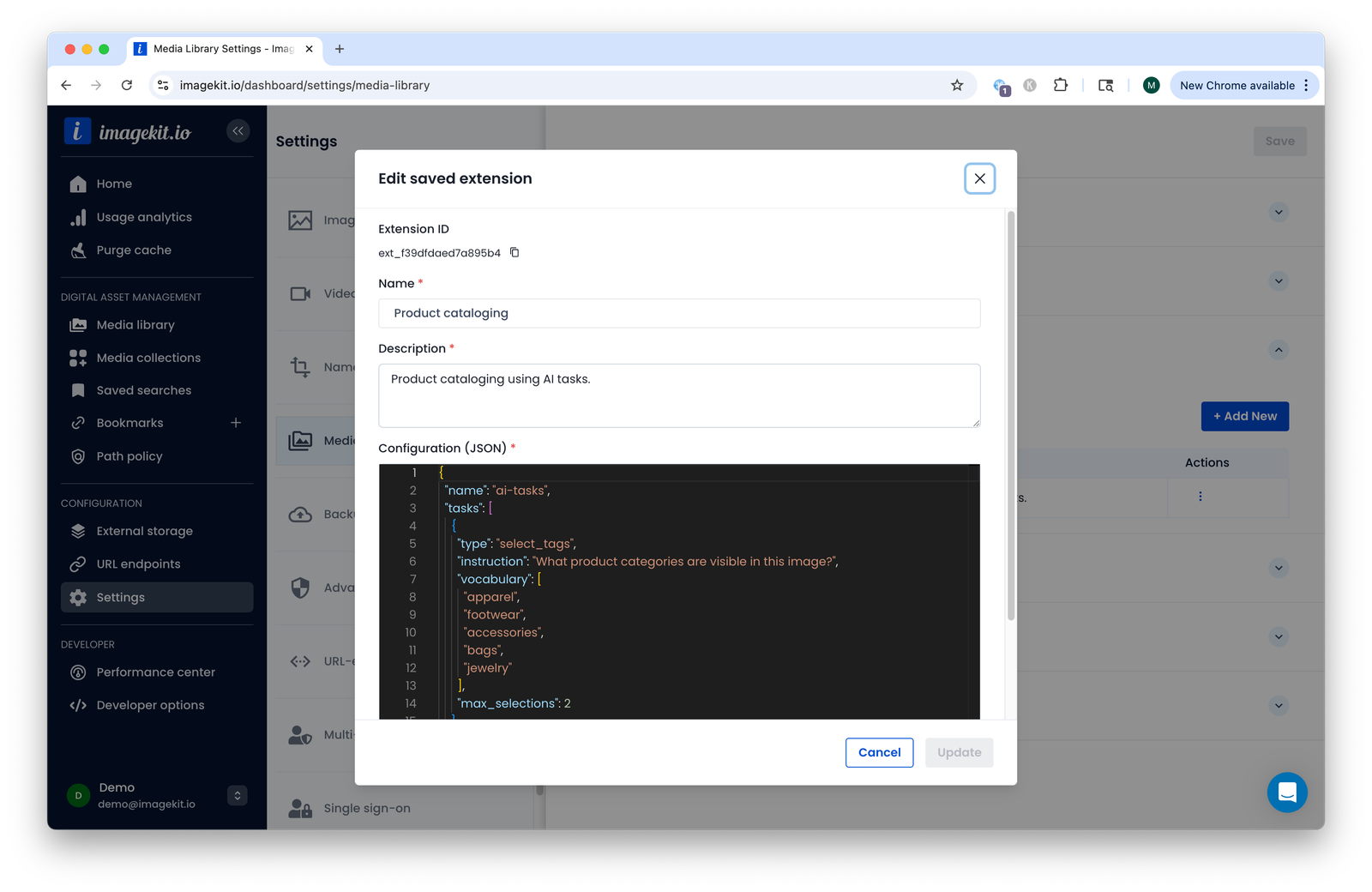
Step 2: Create a saved extension
Go to Settings → Media Library → Saved Extensions and click Add New.
Give it a descriptive name (e.g., "Product Image Classifier"), add a description, and paste your AI task JSON configuration.
Step 3: Apply to images
You have multiple options:
During upload (UI): Open upload settings and select your saved extension from the Extensions list.

On existing files (UI): Select files in Media Library → Right-click → Apply Saved Extensions → Choose your extension → Apply.

Via API at upload time:
curl -X POST 'https://upload.imagekit.io/api/v1/files/upload' \
  -u your_private_key: \
  -F 'file=@image.jpg' \
  -F 'fileName=image.jpg' \
  -F 'extensions=[{
    "name": "ai-tasks",
    "tasks": [
      {
        "type": "select_tags",
        "instruction": "What product categories are visible?",
        "vocabulary": ["apparel", "footwear", "accessories", "bags"],
        "max_selections": 2
      }
    ]
  }]'
Via API on existing files:
curl -X PATCH 'https://api.imagekit.io/v1/files/:fileId/details' \
  -H 'Content-Type: application/json' \
  -u your_private_key: \
  -d '{
  "extensions": [
    {
      "name": "ai-tasks",
      "tasks": [
        {
          "type": "select_tags",
          "instruction": "What product categories are visible?",
          "vocabulary": ["apparel", "footwear", "accessories", "bags"],
          "max_selections": 2
        }
      ]
    }
  ]
}'
You can also reference a saved extension by its ID instead of passing the full JSON every time, which keeps your API calls clean. The ID is listed next to each extension under Settings → Media Library → Saved Extensions:
{
  "extensions": [
    { "name": "saved-extension", "id": "ext_abc123def456" }
  ]
}
Step 4: Automate with path policies (optional)
If you want AI tasks to run automatically on every file uploaded to a specific folder, combine them with path policies. Set up an upload function that attaches your saved extension by its ID:
function handler(operation, payload, user) {
  payload.extensions = JSON.stringify([
    { name: "saved-extension", id: "ext_abc123def456" }
  ]);
  return payload;
}
Now anyone uploading to that folder gets AI tasks applied automatically — no manual selection, no forgotten configurations. Because the policy only references the ID, you can refine the AI task later by editing the saved extension, without touching the policy.
Note that this replaces any extensions the uploader passed in the request. If you want to keep them, parse payload.extensions first and append your saved extension to the list.
Best practices
After working with AI tasks across different configurations, here's what works well:
Start small. Begin with 1-2 sub-tasks on a small batch of images. Validate the results, refine your instructions, then scale up.
Be specific with instructions. Short, direct questions work best. The hard limit is 2000 characters, but aim for under 200.
- ✅ "What types of furniture are visible?"
- ❌ "Describe this image" (too broad, unpredictable results)
Phrase yes/no tasks as actual questions.
- ✅ "Does this image contain people?"
- ❌ "Check if people are present" (not a question)
Use distinct vocabulary terms. Avoid overlapping or ambiguous values.
- ✅
["modern", "traditional", "rustic"] - ❌
["modern", "very modern", "somewhat modern"]
- ✅
Test before you deploy at scale. Run your saved extension on 10-20 representative images first. Check the results. Adjust instructions and vocabularies. Then apply to your full library.
Review and iterate. AI tasks are not set-and-forget. Check the results periodically and refine instructions based on what you see.
Limits and pricing
A few technical constraints to be aware of:
- 1-10 sub-tasks per AI task configuration
- 1-30 vocabulary items per sub-task
- Max 500 characters of combined vocabulary length (for
select_tags) - 1-2000 characters per instruction
- No
%character in tag values yes_notasks must define at least one ofon_yesoron_no- Processing typically takes 1-5 seconds per image
- AI tasks consume extension units — see ImageKit's pricing page for details
What this enables
Reliable metadata is the foundation of good DAM workflows. Once your images are tagged consistently with business-specific vocabulary, everything downstream works better:
- Search and filtering actually return what you need
- Automated publishing can rely on metadata to route assets to the right channels
- Personalization becomes feasible when you can reliably find "round neck, half-sleeve, men's, studio-shot" images
- QC catches problems at upload instead of after they're live
The gap between "we have images in a DAM" and "our DAM actively helps us do our jobs" is usually metadata quality. AI tasks close that gap.
For the full technical reference, all configuration options, and more industry examples, check out the AI tasks documentation.