AI has been part of digital asset management (DAM) for years. Auto-tagging, visual search, smart cropping and generative edits ship with most platforms today, and each one removes a step from the daily work of marketing and creative teams. Each feature, however, lives inside the DAM's own interface and handles a single task, which leaves teams to connect the steps themselves, moving every asset from search to edit to approval to publishing manually.
The introduction of the Model Context Protocol (MCP) closes that gap. MCP is an open standard that connects AI assistants such as Claude directly to the systems a business already runs on, so a team can describe the outcome it needs and let Claude carry out every step inside the real media library, from finding and editing assets to building creatives and publishing them. That shift, from AI features that assist with a task to an AI assistant that completes the work, is what turns a DAM into an agentic one.
What an agentic DAM makes possible
In an agentic DAM, the AI assistant goes beyond answering questions about the library and carries out the work itself, interpreting a request, choosing the right tools and completing the task end to end. For marketing and creative operations teams, that covers five everyday jobs:
- Find. A one-sentence description becomes a precise metadata query, with no need to remember folder structures or tag conventions.
- Create. Approved assets and campaign copy flow into design templates to produce finished creatives for each channel, and the results are saved back to the library.
- Govern. Folders are audited for expired usage rights, missing alt text and naming violations, and every fix is proposed for review before it is applied.
- Organize. Tags, renames, moves and collections are handled in bulk rather than one asset at a time.
- Publish. Approved assets reach the website as optimized delivery URLs, without waiting on an engineering hand-off.
Claude carries out each of these jobs with the signed-in user's permissions and proposes changes before applying them, so users stay in control of everything that happens in the library.
With that standard in mind, the next question is which DAM platforms can support this kind of work with Claude today.
Which DAMs can you use with Claude today?
Most major DAM platforms now offer an MCP server or have one on the way, but connecting Claude is only the starting point, because what matters is how much of the work Claude can do once it is connected. Some servers are read-only and stop at search, others let Claude edit metadata but not upload or delete, and only a few cover the full lifecycle from finding an asset to transforming and publishing it. Setup requirements vary just as widely, from one-click connectors to admin-created OAuth apps and add-on licences. The table below compares what each platform supports today.
| Platform | Claude MCP | Key capabilities | Limitations |
|---|---|---|---|
| ImageKit | ✅ | Built API-first, with every asset delivered through a real-time transformation URL. Three MCP servers: DAM handles search, upload, organizing (move, copy, rename, delete), tags and custom metadata, collections, sharing and access, versions, publishing, cache purge and bulk AI Tasks. DevTools searches the docs and builds transformation URLs for resizing, cropping, overlays and AI edits. Admin manages origins, URL endpoints and usage analytics. | No brand-guideline content or review-workflow tools |
| Adobe AEM Assets | ✅ | Upload, download, move, copy, delete, publish and unpublish assets; edit metadata; inspect references; find unused assets; on-the-fly renditions with Dynamic Media | AEM as a Cloud Service only. Brand-governance checks need a separate Agents licence, and the Claude directory connector exposes only a subset of the tools. |
| Cloudinary | ✅ | Five MCP servers covering upload, search, rename, delete, folders, tags, transformation URLs and image generation, plus environment config, structured metadata, AI analysis and MediaFlows automations, all installable through an official Claude plugin | Image generation requires a paid add-on, and MediaFlows needs API keys rather than OAuth. |
| Frontify | ✅ | Official Claude connector with tool packs: read-only discovery by default, with write packs for upload, tags, metadata, collections, bulk moves, workflow tasks and template-based creative export | Disabled until an admin enables it, and only one pack can be active per account at a time on the main connection. |
| Acquia DAM | ✅ | Search, asset details, metadata updates, release and expiry dates, renaming, and adding or removing tags | No upload, move or delete. Updates overwrite values with no edit history, and an admin must enable the server. |
| Aprimo | ✅ | Search, metadata reads and updates, previews and downloads, public links, download agreements, and campaign and project search | No upload, delete or record creation, and an AI Elite licence is required. |
| Bynder | ✅ | Keyword and natural-language asset search, tag and metaproperty listing, and brand-guideline lookup | Read-only, with no upload, metadata or tag edits, renaming, moving, deleting or transformations. An admin must create an OAuth app first. |
| Canto | ❌ | MCP available for Product Hub (product catalogue data) only | No MCP for the core DAM library |
| Brandfolder | ❌ | REST API only | No MCP server |
| MediaValet | ❌ | REST API only | No MCP server |
Based on each vendor's public documentation, October 2026.
Almost every platform can now help Claude find an asset, but far fewer let it finish the job, and that is where the difference between a connected DAM and an agentic one becomes clear. The rest of this guide shows what the complete workflow looks like by following a single campaign from start to finish.
Using Claude for agentic digital asset management with ImageKit MCP
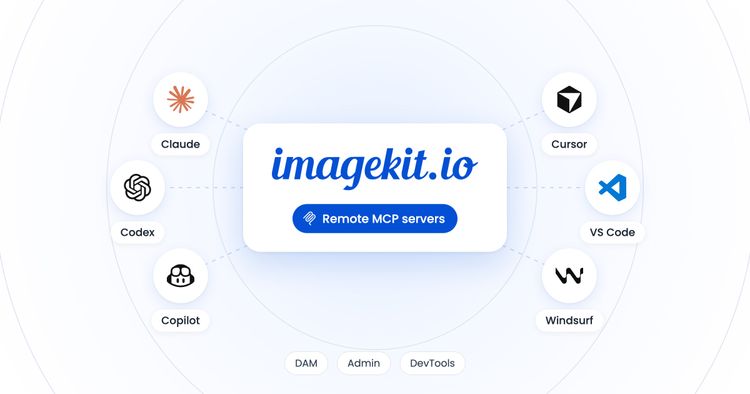
ImageKit connects to Claude through three connectors, each covering a different part of the workflow:
| Connector | What it lets Claude do | Sign-in |
|---|---|---|
| ImageKit DAM | Search, organize, upload and share assets in the media library | ImageKit account |
| ImageKit Admin | Manage origins and URL endpoints, and view usage analytics | ImageKit account |
| ImageKit DevTools | Search the ImageKit docs and build transformation URLs | None |
The running example is Northloom, a fictional apparel brand preparing its Summer '26 campaign, and the video below shows the full workflow in about a minute.
Setup: connect ImageKit to Claude
Connecting ImageKit takes about two minutes and needs no code.
- In Claude, open Customize in the sidebar and go to the Connectors tab.
- Open Discover and search for imagekit to see all three ImageKit connectors.

- Click Connect on ImageKit DAM, sign in to ImageKit and approve the access Claude is requesting.

- Repeat for ImageKit Admin. ImageKit DevTools connects instantly because it needs no sign-in.

Each connector assumes the role the user already holds in the ImageKit DAM, so Claude receives exactly that level of access and nothing more. A user who can only view assets gives Claude view-only access, a contributor's Claude can upload and edit only where that contributor can, and any files, folders or collections that are not shared with the user remain invisible to Claude. The sign-in screen can narrow access further, for example to view-only for a first trial, and access can be revoked at any time from the ImageKit profile.
With the connectors in place, the campaign starts where every campaign does: finding the right assets.
Use case 1: Find anything by describing it
Traditional DAM search depends on knowing how someone else tagged a shoot, but with ImageKit connected, a plain description is enough:
Find casual summer outfits on female models: full body, studio shots, approved for the summer campaign
Claude translates the request into a precise query against the library's tags and custom metadata, requiring every condition to match:
tags IN ["casual"] AND tags IN ["summer"] AND tags IN ["approved"]
AND "customMetadata.model" = "female"
AND "customMetadata.shot" = "studio-full-body"
The matching assets open as a browsable grid inside the chat, ready to copy or download.

Before any of these assets are used, Claude also flags what matters, noting here that two images are 4K and that the usage rights on one of them end mid-campaign.

Follow-up requests build on the same results, whether that means narrowing the set to a single look or grouping it into a collection for the paid social team.
Use case 2: Create on-brand creatives at scale
With the right looks in hand, the next step is turning them into ads. Northloom's design team keeps its Meta feed ad template in Claude Design, where the layout, logo placement, typography and button style are fixed and the image, headline, offer and call to action are set up as variables. The campaign team only has to supply the content, so they attach a CSV with one row per ad.

Use our Summer sale Meta feed template in Claude Design to make 4 ads from this CSV, one per row, with the summer looks you just found, then save them to ImageKit.
Claude opens the Summer sale template in Claude Design, pulls the approved Northloom logo from ImageKit and builds four 1080×1350 ads from the CSV rows and the looks found in the earlier search, laying them out as artboards on a single canvas for review.

Once the ads look right on the canvas, the user exports them, and Claude uploads all four straight back to ImageKit, saving them to /summer-26/meta-ads where the rest of the team can find, share and publish them.

Because the design lives in the template and the content lives in the CSV, every ad stays on brand without a designer rebuilding each one, and the next campaign only needs a new CSV. ImageKit remains the system of record at both ends of the workflow, supplying the approved logo and photography going in and storing the finished creatives alongside the rest of the campaign coming out.
Use case 3: Keep your library compliant
New creatives are only one part of launch readiness. Before anything goes live, every asset in the campaign folder also needs to be cleared for use, accessible and correctly named.
Audit /summer-26 before launch: flag assets with expired usage rights, missing alt text or names that break our brand_category_colour_## convention, and suggest fixes for me to review.
Claude reviews the folder and finds 11 issues across 9 assets. Two images with expired usage rights are marked for unpublishing, images without alt text receive a written description such as "Navy piqué polo shirt, flat lay", and files like IMG_4821.jpg are renamed to match the convention, for example northloom_tee_navy_01.jpg.

Nothing changes until the user approves it. Fixes can be approved all at once or selectively, and once they are, Claude applies them and unpublishes the assets whose rights have expired.

Saved as a reusable prompt, the same audit can run before every launch, giving the team a consistent compliance check with sign-off built in.
Use case 4: Publish straight to your website
With the library clean and the creatives approved, the last step is getting the new assets onto the website. The same ImageKit MCP servers are available in Claude Code through the ImageKit plugin, so a developer, or a marketer comfortable with the codebase, can make the update directly:
Update the homepage Summer '26 gallery with the latest approved assets from ImageKit, using optimized transformation URLs (800px wide, auto format).
Claude finds the approved Summer '26 assets, uses DevTools to build optimized URLs and updates the gallery code, replacing each local image path with an ImageKit URL that serves the image at 800 pixels wide in the best format for each visitor's browser.

The change is reviewed like any other code change and then shipped, putting the new campaign live on the storefront.

What used to be a ticket in an engineering backlog becomes a single request and a quick review.
Connecting Claude to a DAM changes who does the work, but not what good asset management requires.
Best practices for using Claude in your DAM
An AI assistant can only find, reuse and govern assets as well as the library allows, and because it follows instructions literally, gaps in metadata, structure or process surface faster and at a larger scale than they ever did with manual work. Teams that get the most from an agentic DAM treat it as an operating model rather than a plug-in, and the practices below are the foundations we recommend putting in place before giving Claude more responsibility.
Define a metadata schema and controlled vocabulary. Agree on the fields every asset type needs, such as campaign, product, region, approval status and usage-rights dates, along with the allowed values for each. Claude builds its searches from these fields, so a schema with clear, shared values turns plain-language requests into precise queries instead of guesswork.
Keep data clean and complete at the point of entry. Fixing metadata after the fact is slow and rarely finished, so the most reliable approach is to enforce quality as assets arrive. Two ImageKit features make this practical:
- AI Tasks ask plain-English questions of every image, such as "Is there a male or a female model?" or "Is this a round, polo or V-neck collar?", and write the answers into tags or custom metadata using only an approved vocabulary. They can run on upload or in bulk, and they can also flag quality issues, such as blurry images, for review.
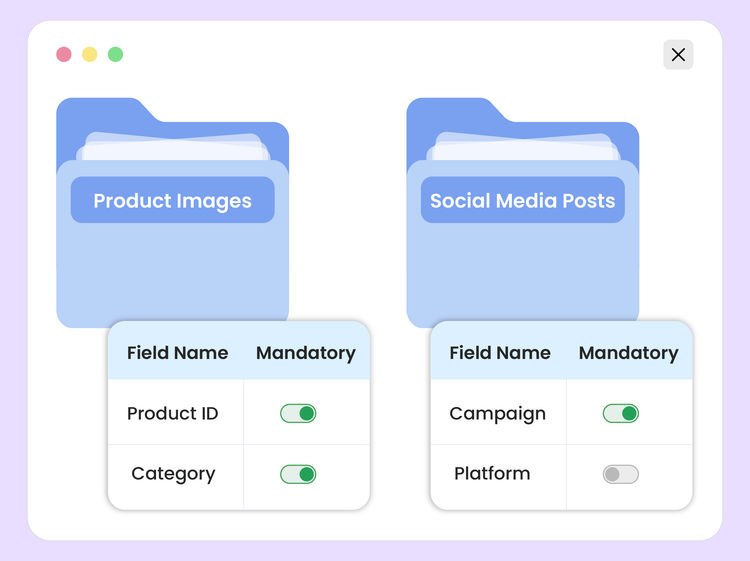
- Path Policies (Enterprise only) apply rules at the folder level, making metadata fields required, read-only or pre-filled with defaults, enforcing naming conventions and file types on upload, running AI Tasks automatically on new assets and protecting critical files from deletion or renaming.
Store usage rights as structured data. Rights holders, licence terms and expiry dates belong in dedicated metadata fields rather than in file names, notes or spreadsheets, because only structured fields let Claude reliably flag expiring assets during search and unpublish them during audits.
Organize folders around how teams work. A consistent folder structure by brand, campaign or content type gives Claude a clear scope for each task and keeps audits and bulk operations contained. Uploading to the library root should be avoided, and work in progress should stay separate from approved, publishable assets.
Keep one approved master and derive every variation from it. Resized, cropped and reformatted copies multiply quickly and drift out of date. Delivering variations through transformation URLs from a single approved master keeps every channel tied to one source of truth: unpublishing the master takes its public URL offline straight away, and an updated master reaches every channel once its cache is purged or its URL version is bumped.
Manage access through DAM roles. Because each connector inherits the user's role in the DAM, the most reliable way to control what Claude can do is to keep those roles accurate. Read-only access is enough for search and audits, so editing rights should be extended only when a team is ready for Claude to make changes, and connected applications should be reviewed regularly.
Write conventions into prompts and build a shared prompt library. Naming patterns, required fields, approval statuses and rights fields should be stated explicitly in each request. Prompts that produce good results, such as a pre-launch audit or a creative brief, are worth saving where the whole team can reuse them, so results stay consistent from one campaign to the next.
Pilot on a small folder and keep a human in the loop. New prompts and bulk operations are best tested on a limited set of assets before they run across the library, and every proposed rename, metadata update or unpublish should be reviewed before it is approved. Approval is the step that keeps the library trustworthy.
Audit on a schedule, not just before launches. Rights expire, products are discontinued and naming drifts over time. A recurring audit of key folders catches these issues early, while fixing them is still a routine task rather than a last-minute scramble.
Get started with ImageKit MCP and Claude
Connecting ImageKit to Claude takes a couple of minutes from Customize → Connectors, and the Build with AI guide covers every setup option for Claude Desktop, Claude Code and other AI tools. From there, a single request is enough to find, create, govern and publish assets across the entire library.
Try ImageKit MCP with Claude today.