
Asset Versioning in DAM
Keep track of asset changes and maintain version history in your DAM.
How to track and manage asset versions to ensure teams use the right version
- Navigate to the asset details page to view version history.
- Use the version drop-down menu to view all available versions of the asset.
- Select any version from the list to open and review it.
- Click the '+' icon to upload a new version of the asset.
- Observe that newly uploaded versions automatically become the current version.
- Select an older version from the drop-down and choose 'Restore version'.
- Click 'Submit' to restore to the selected older version.
- Use the 'Delete version' option to remove unwanted versions from the history.
- Enable 'Include file versions' in advanced search and enter the file name to find all versions.
- View all asset versions in search results, including draft state indicators for each version.
Explore More Demos
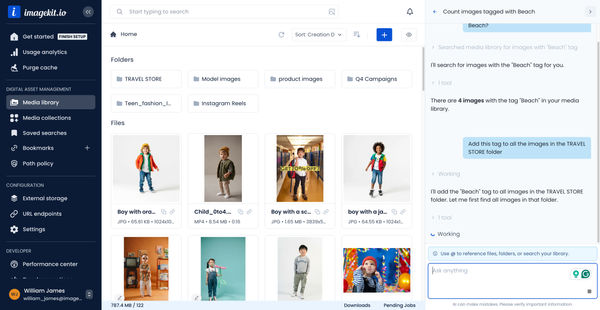
DAM Agent
Manage your media library through natural language with DAM Agent, an AI assistant that searches, tags, organizes, and operates on assets for you.
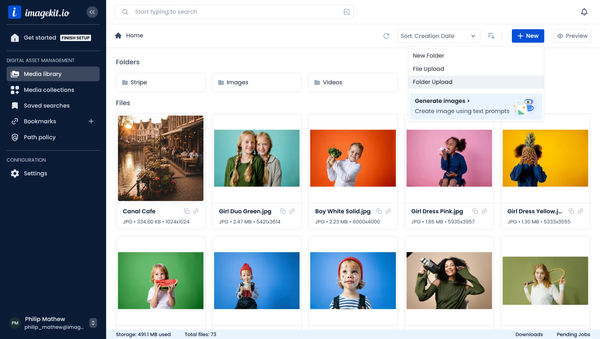
Upload Assets to ImageKit DAM
Easily upload and manage your assets in ImageKit's DAM with support for bulk uploads, drag-and-drop, and multiple file formats.
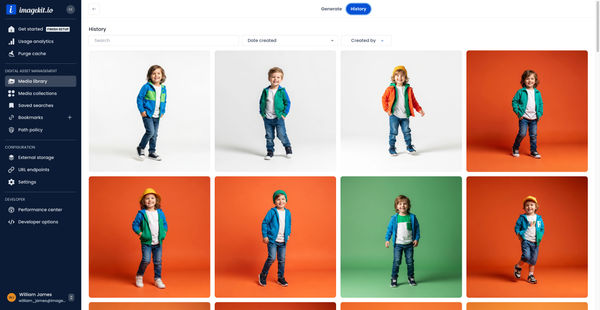
Generate Images with AI
Use AI-powered image generation to create stunning visuals, extend images, and generate backgrounds automatically.
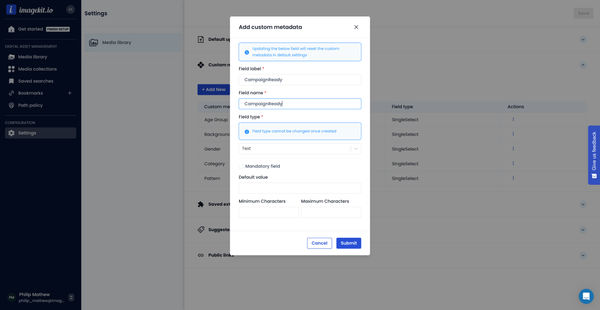
Custom Metadata In ImageKit DAM
Structure and organize your media library with custom metadata fields for easy asset discovery and management.

AI Tasks for tagging and metadata
See how to use ImageKit's AI Tasks to automatically tag and classify assets in your DAM, making them instantly searchable and organized.
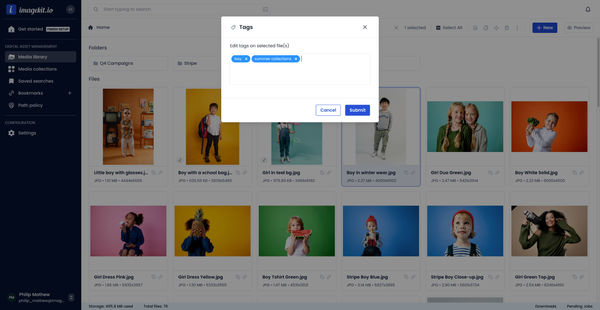
Manual and Standard AI Asset Tagging
Use Google and AWS AI services to tag and categorize your assets to make them instantly searchable and properly organized.