
Path Policies
Set up automated transformation and delivery rules based on file paths for streamlined asset management.
How to implement asset governance at the folder level using path policies
- Navigate to Path policy settings and click 'Add new' to create a new policy.
- Enter the policy name, description, and select the folder path where it will be applied.
- Select 'Enable validate function' checkbox to create validation rules.
- Add a custom script to restrict specific actions like renaming or updating files in the selected folder.
- Click 'Save' to apply the validation policy.
- Test the policy by attempting to rename a file in the folder and observe the error message.
- Verify that the policy applies to all subfolders under the selected folder path.
- Create another policy and select 'Enable upload function' to add upload rules.
- Add a custom script that uses ImageKit's AI to automatically tag assets and generate descriptions on upload.
- Enable 'Custom metadata rules' to apply specific metadata at upload time.
- Configure which custom metadata fields should be automatically added to uploaded assets.
- Click 'Save' to create the complete upload policy.
- Alternatively, right-click a folder and select 'Apply path policy' to apply an existing policy.
- Choose the desired policy from the list and click 'Submit'.
- Upload a new file to the folder to test the policy.
- Verify that uploaded assets are automatically tagged with AI-generated tags.
- Confirm that AI-generated descriptions are added to the assets.
- Check that only the custom metadata defined in the policy is visible with the correct values.
Explore More Demos
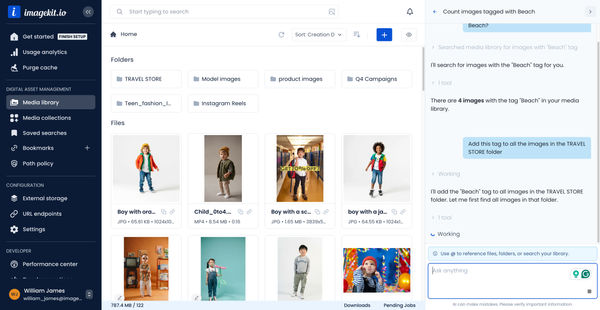
DAM Agent
Manage your media library through natural language with DAM Agent, an AI assistant that searches, tags, organizes, and operates on assets for you.
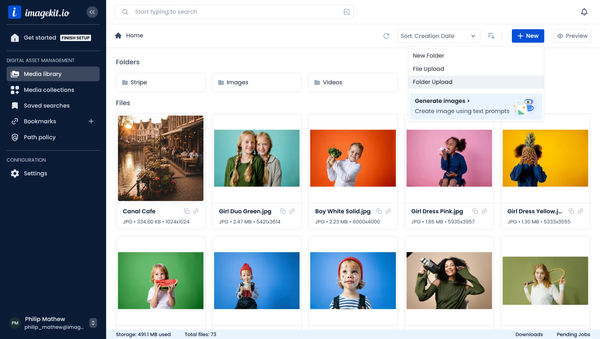
Upload Assets to ImageKit DAM
Easily upload and manage your assets in ImageKit's DAM with support for bulk uploads, drag-and-drop, and multiple file formats.
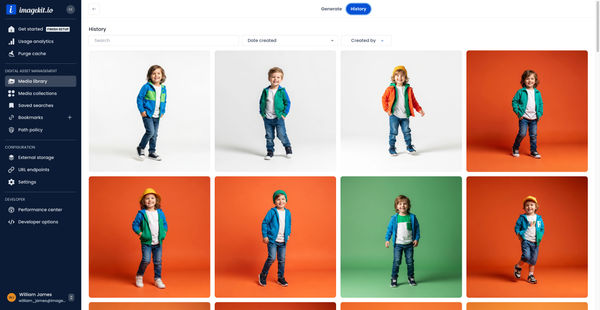
Generate Images with AI
Use AI-powered image generation to create stunning visuals, extend images, and generate backgrounds automatically.
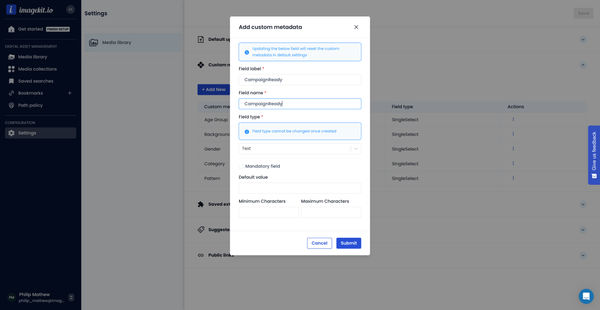
Custom Metadata In ImageKit DAM
Structure and organize your media library with custom metadata fields for easy asset discovery and management.

AI Tasks for tagging and metadata
See how to use ImageKit's AI Tasks to automatically tag and classify assets in your DAM, making them instantly searchable and organized.
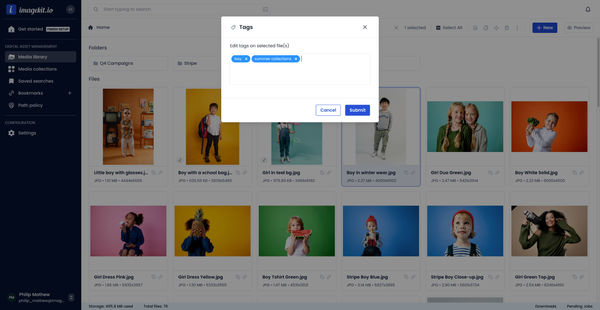
Manual and Standard AI Asset Tagging
Use Google and AWS AI services to tag and categorize your assets to make them instantly searchable and properly organized.